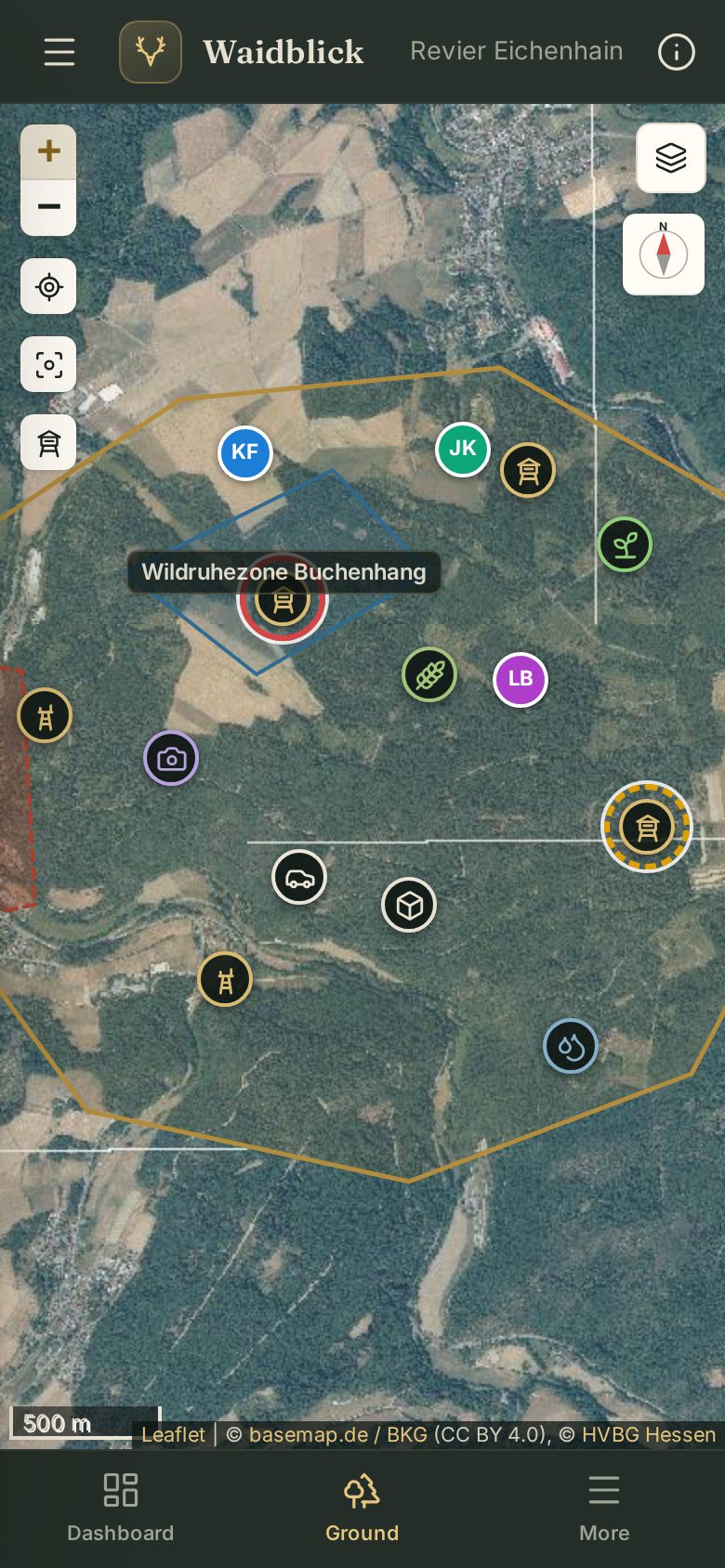
Ground map in the field
On the smartphone the ground map fills the whole screen. The lists below the map (areas, zones, facilities, rescue points, bookings) are hidden – everything important is available through the map and the ground info.
Map buttons
- + / − zoom (or pinch with two fingers).
- My location – centres the map on you.
- Show whole ground.
- Edit facilities (high seat symbol) – see below.
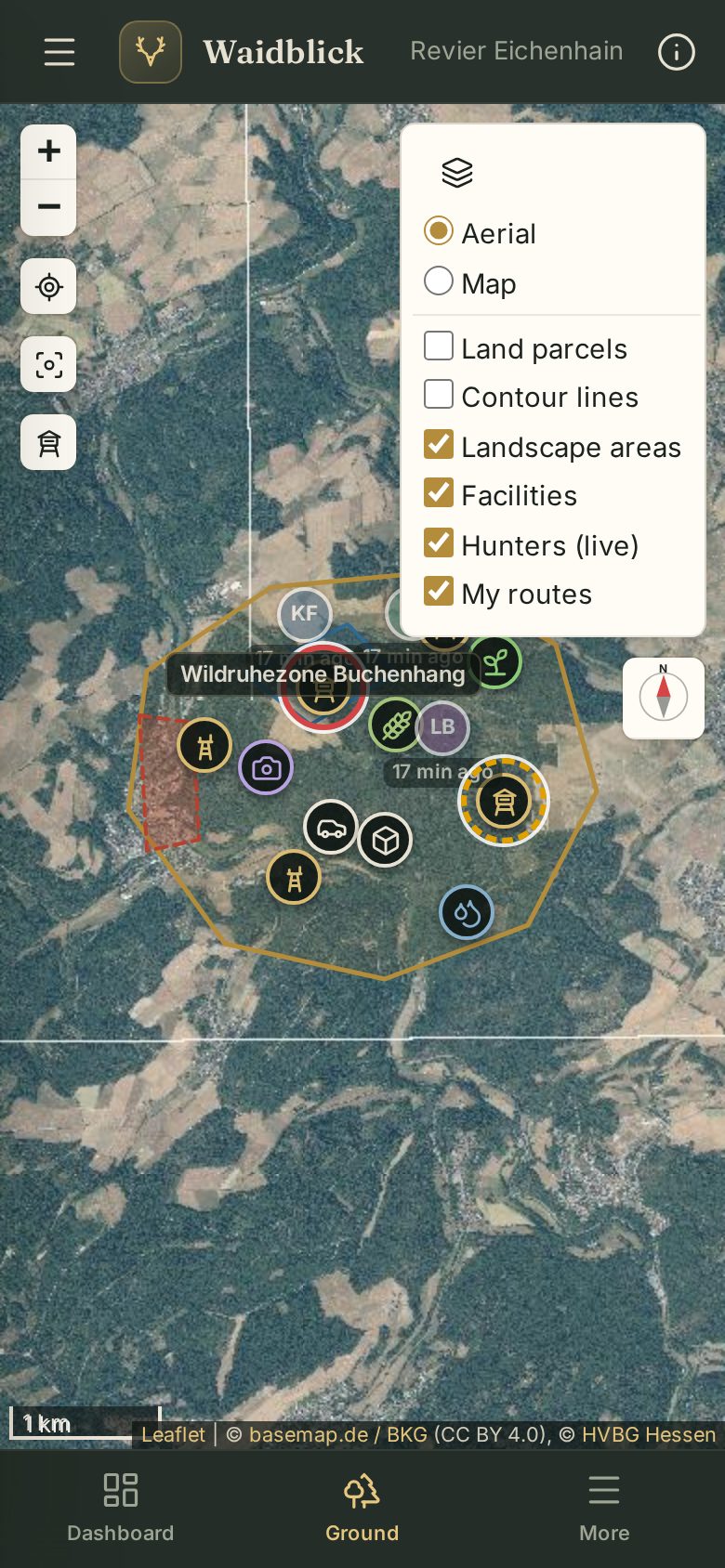
- Layers at the top right – aerial or map, land parcels, contour lines and more.
- Compass – aligns the map with the direction you are facing.
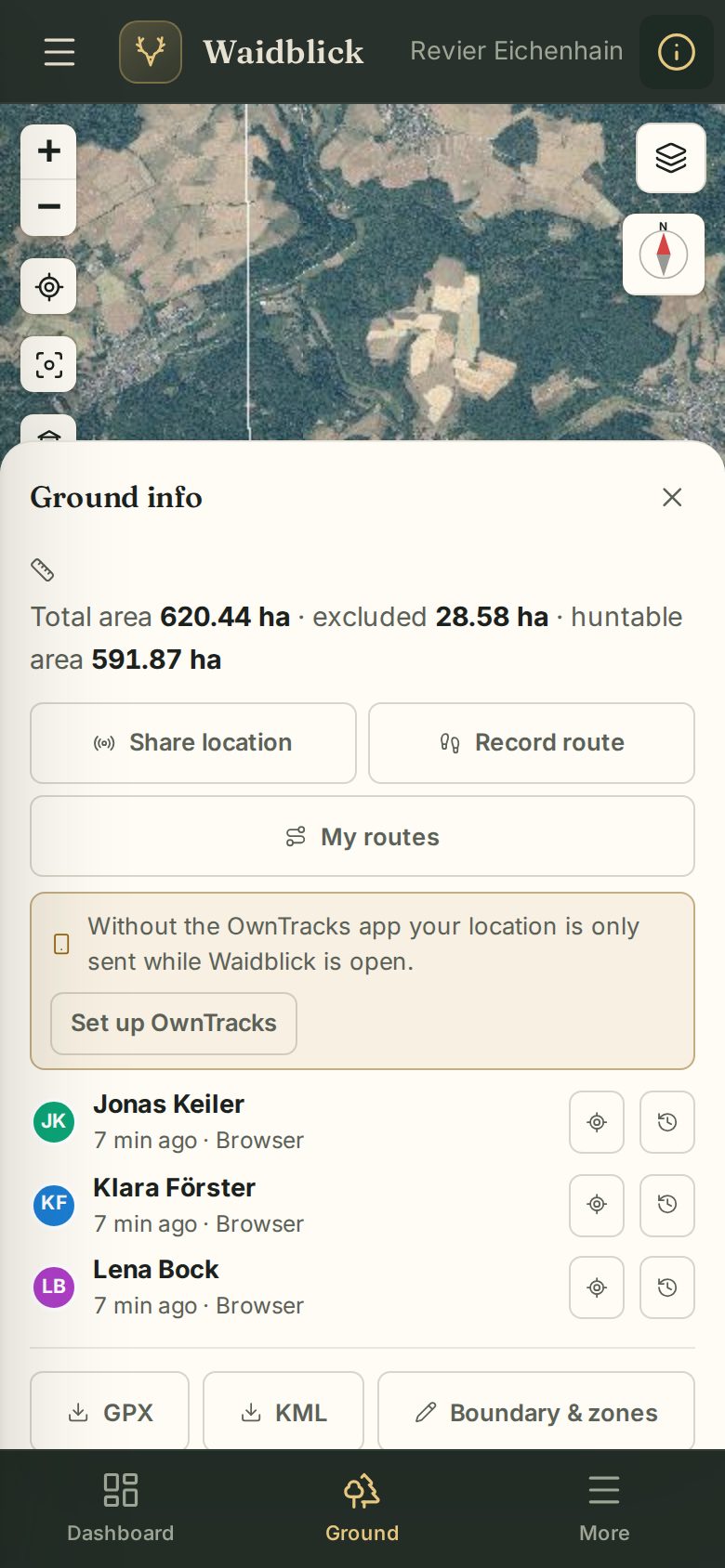
Ground info
The i at the top right of the title bar opens the ground info: areas of the ground, Share location, Record route, My routes, OwnTracks, the hunters sharing their location, GPX/KML export and Boundary & zones.
What these features do is explained in Share location and record routes.
Adding facilities in the field
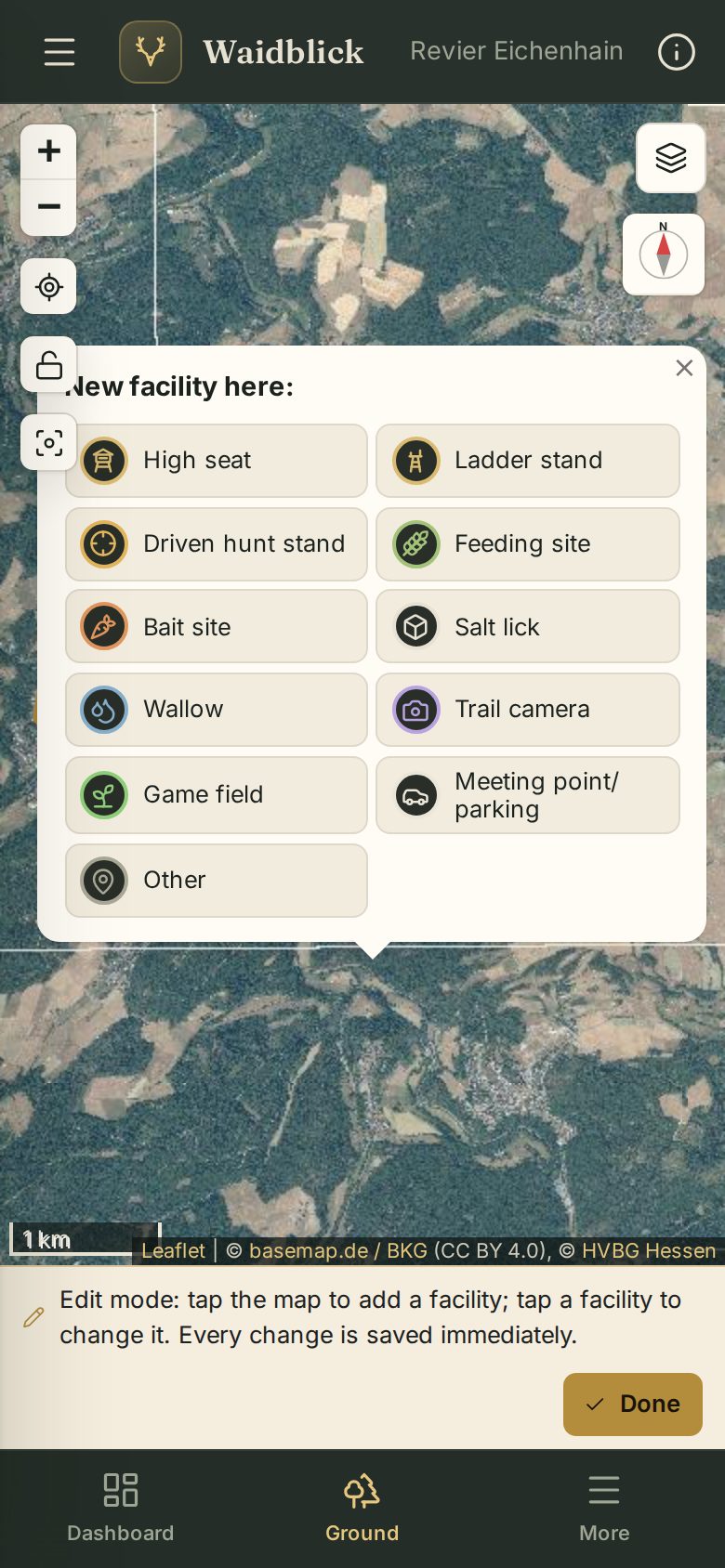
Is there a new high seat or trail camera? Tap the high seat symbol on the left, then the map – or My location first and then your position. Choose the type; the facility is saved immediately. Done ends the mode.
Booking a high seat
Tap a high seat and then Book high seat. Booked seats have a red (now) or yellow (later today) ring. More in High seat bookings.