
Manage hunting ground
Manage hunting ground is available to leaseholders and co-leaseholders – in the menu below the ground. The page has three tabs: Ground details, Members and License. Ground data at the top right takes you back to the ground.
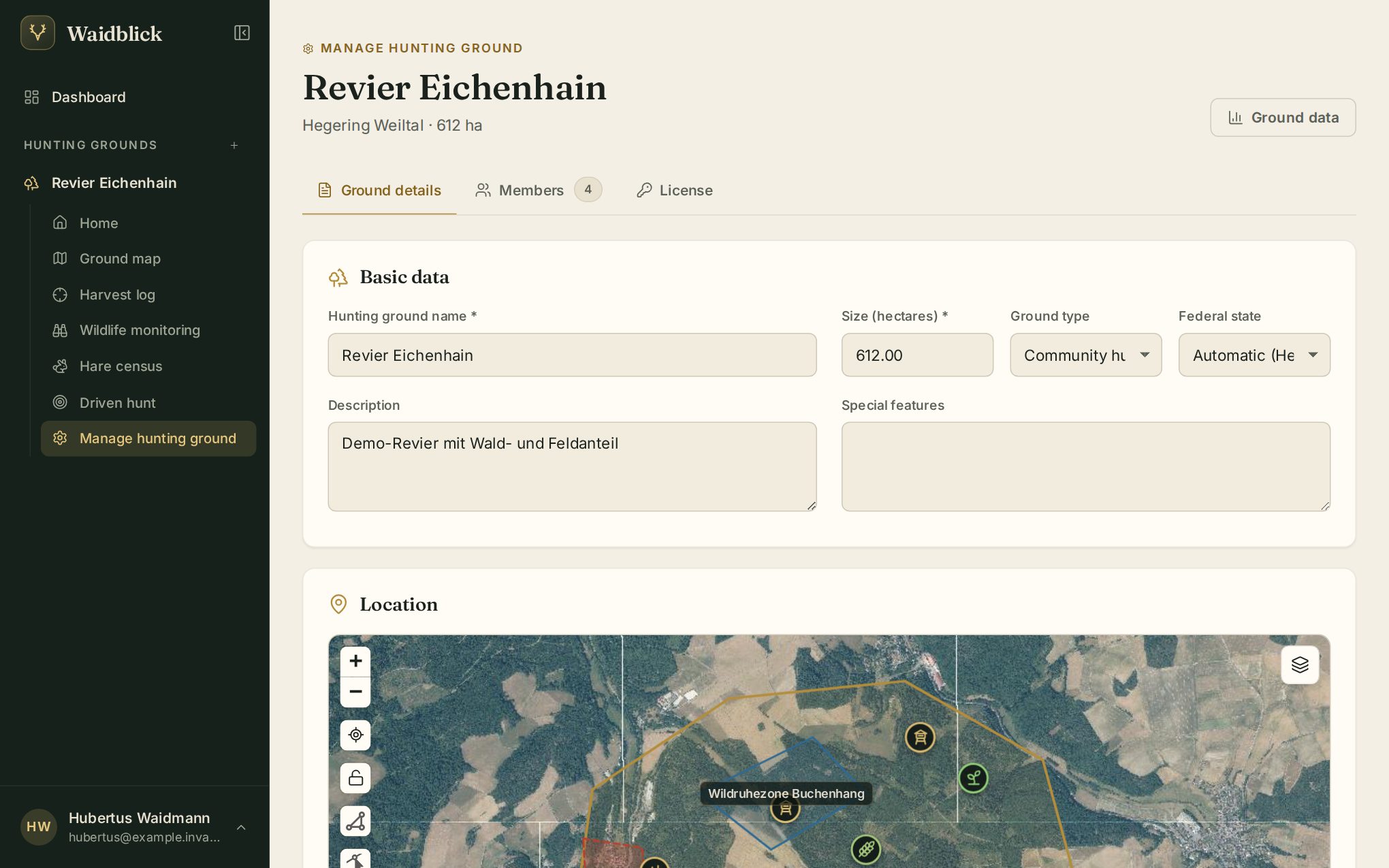
Ground details
Basic data contains name, size, type, description and special features, plus the federal state. It is normally detected from the location (“Automatic (Hesse)”); for grounds on a state border set it explicitly. The hunting seasons depend on it.
Only the main leaseholder can move the ground to another district.
Save changes stores the basic data.
Boundary, zones and facilities
In the Location section you draw on the map:
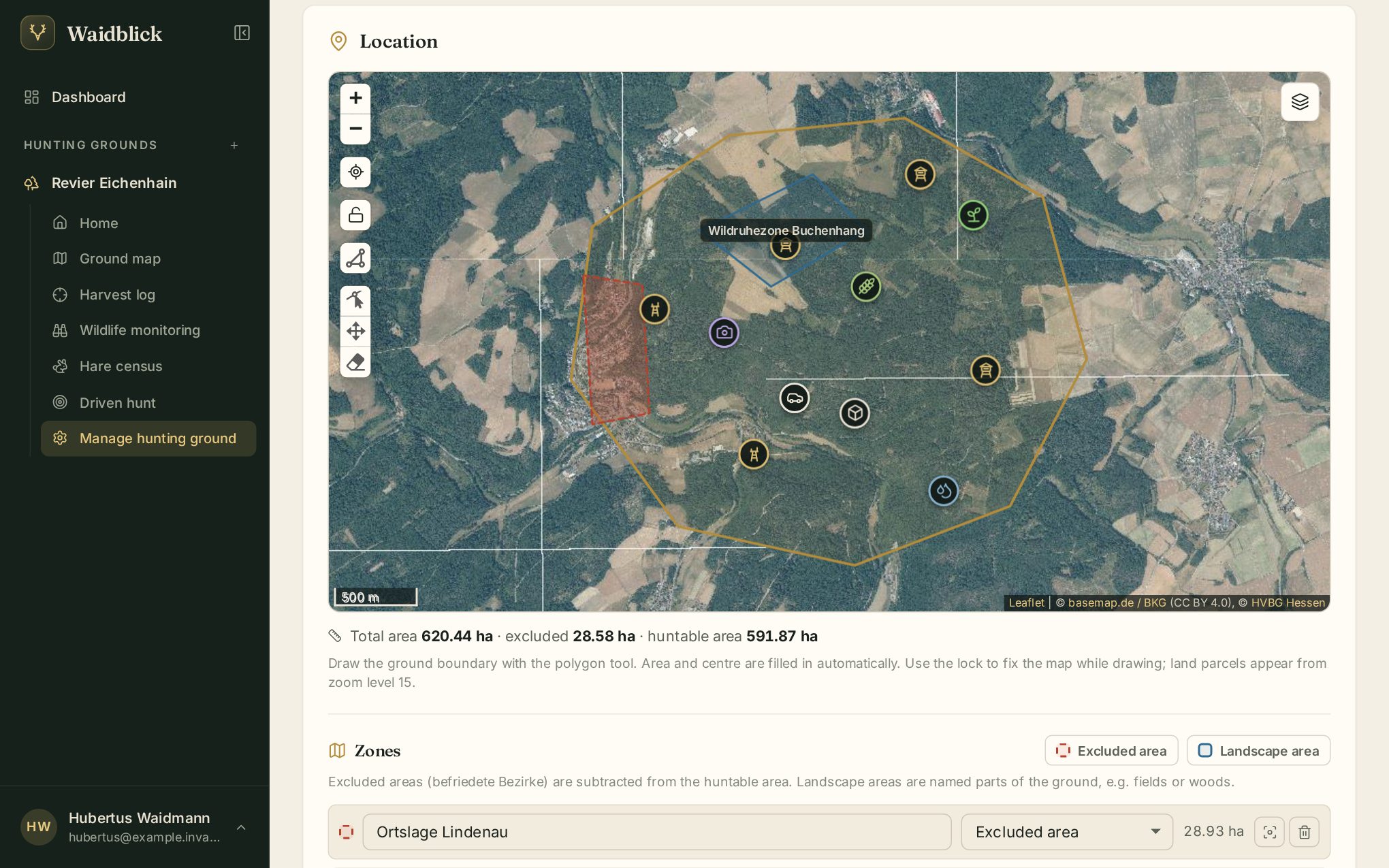
- Ground boundary – draw with the polygon tool, move vertices with the edit tool. Area and centre are filled in. The lock keeps the map still while drawing.
- Zones – excluded area (subtracted from the huntable area, e.g. villages) and landscape area (named parts such as fields, woods, quiet zones). Each zone has name, type and area; the icons next to it show it on the map or delete it.
- Ground facilities – choose the type, then Place on map and tap the spot, or At my location. Edit name, type and note in the list; points can be dragged on the map. Changes to facilities are saved immediately.
- GPS latitude / longitude – centre of the ground.
Below the map Waidblick calculates the total area, excluded and huntable area. Land parcels appear from zoom level 15.
Members
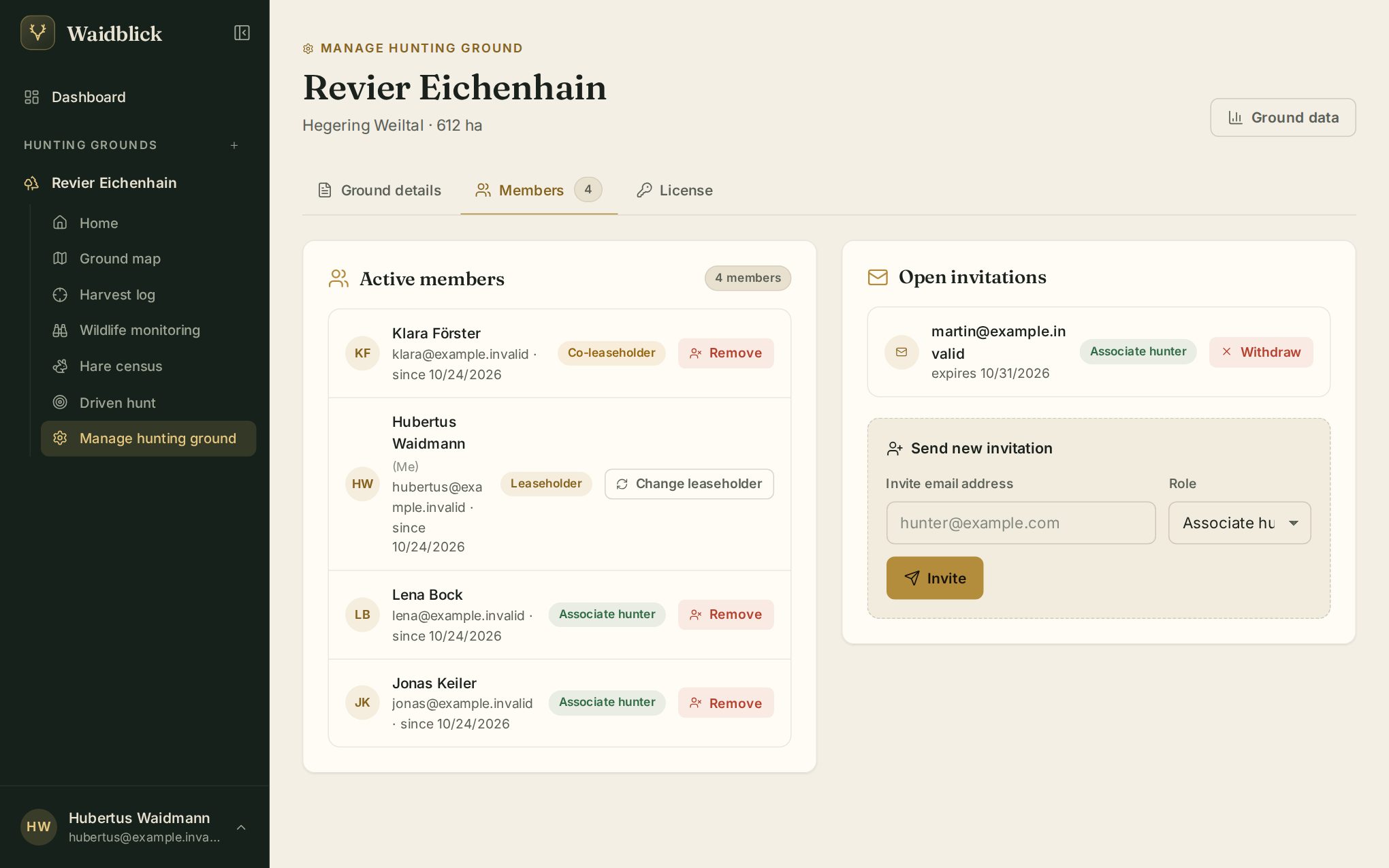
- Active members with their role. Remove takes someone out of the ground: co-leaseholders can remove associate hunters, only the main leaseholder can remove co-leaseholders. Nobody can remove the main leaseholder.
- Pending invitations with expiry date; Withdraw invalidates an invitation.
- Send new invitation – email address and role (associate hunter or co-leaseholder; only the main leaseholder invites co-leaseholders).
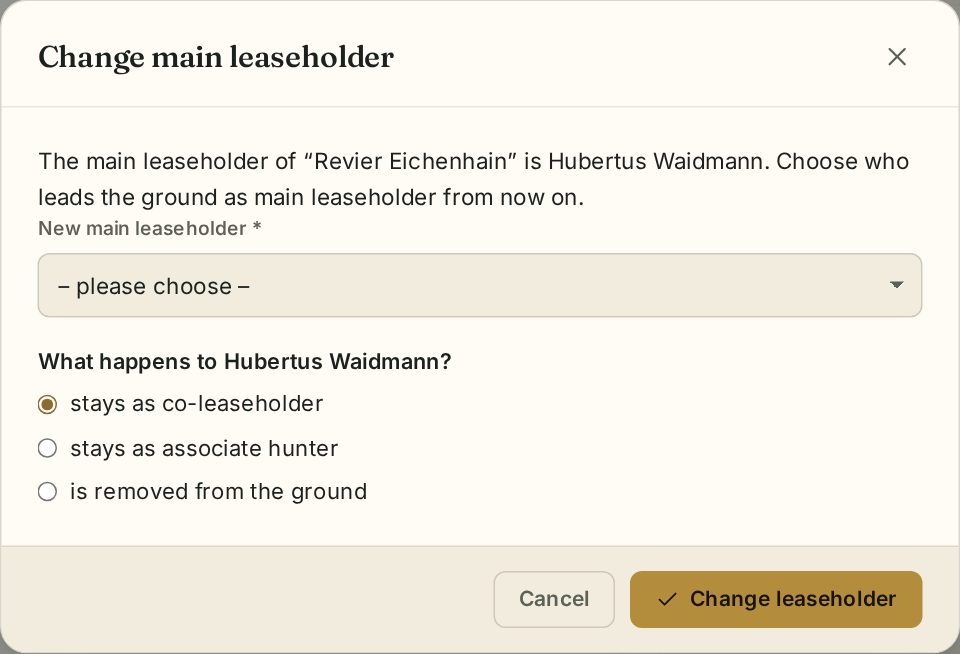
Change leaseholder
The main leaseholder's row has Change leaseholder. In the dialog choose the new main leaseholder from the members and decide what happens to the previous one: they stay as co-leaseholder, stay as associate hunter or are removed from the ground.
License
Many installations have license checks switched off – the tab then says “Licenses are switched off on this server – this ground has all features”.
When they are switched on, the tab shows the ground's plan (e.g. Basic, Trial, Ground, Ground Plus), its validity, the used and allowed members and the included features. The main leaseholder can
- enter and activate a license key,
- check now or release the license from the ground,
- start or request a plan under Plans.
A new ground first runs on the trial; “Trial until” shows when it ends. After that a ground without a license is read-only: existing data stays visible, new things (entries, bookings, invitations) are blocked until the ground has a license.
Co-leaseholders see the license but cannot change it. If a feature is not in the plan, its button stays visible in the ground but is greyed out; pure displays (statistics, today's sit, hunting seasons, map layers) are left out. Existing data always stays visible – only new things are blocked.
The features are split into core features and add-on features. Every plan has the core features – Basic without the two driven hunt features, but with the Excel import:
| Core feature | Affects |
|---|---|
| High seat bookings | Book a high seat (list and map) |
| Harvest log | New entry, taking over the bag of a driven hunt |
| Harvest statistics | Statistics above the harvest log |
| Wildlife monitoring | Recording sightings |
| Hare census | New census |
| Plan driven hunts | New driven hunt |
| Driven hunt: live situation on the day | “Live situation” switch |
| Map: contour lines, land parcels, rescue points | the respective map layer |
| Hunting seasons today, today's sit | the boxes on the ground home |
| Add-on feature | Affects |
|---|---|
| Offline maps | “Save offline” in the ground and “Available offline” in the driven hunt |
| Share location (also OwnTracks) | “Share location” and setting up OwnTracks |
| Record tracks | “Record route” |
| Export harvest log (Excel, PDF) | “As Excel” and “As PDF” of the harvest log |
| Export map and tracks (GPX, KML) | Boundary as GPX/KML, tracks as GPX |
| Export stand map (PDF) | Stand map of the driven hunt |
| Import Excel / Import notes | the two imports of the harvest log |
| Submission link harvest log / hare census | the respective submission link for guests |
| Driven hunt: guests by link | Registration link and the guests' personal links |
| Monitoring statistics | “Statistics” tab in wildlife monitoring |